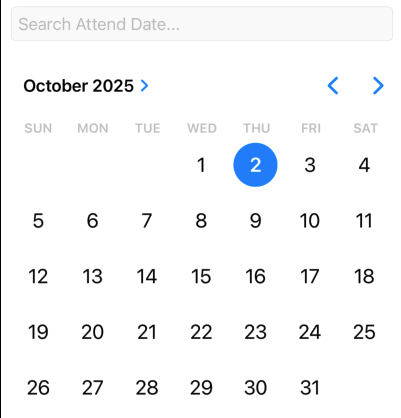
I added a date picker to a textfield. When the datepicker appears, it has the current day highlighted (“selected”). When I try to click on the current day, it doesn’t not take and enter the date in my textfield. I can select any other day, except the default one selected. I figure it has something to do with the get in the DatePicker, but can’t figure out how to tell it not to highlight a default day.
My Code:
if showDatePicker {
DatePicker(“Select Date”, selection: Binding(
get: {
searchDate ?? Date()
}, set: {
searchDate = $0
showDatePicker = false
}), displayedComponents: .date)
.datePickerStyle(.graphical)
.labelsHidden()
}
Screenshot when tap on Search Attend Date:
How have you defined searchDate and what date format are you using? Is it just date or date and time? Are you converting the date to a String? Is the search going to be on an attribute that is defined as type Date or String?
Consider populating searchDate with the current date when the view appears using .onAppear and that way the current date is already there.
Here is the searchDate definition:
@State private var searchDate: Date? = nil
This is on a sheet offering an advanced search of 6 different fields. I need the date field to start as a blank (and allow to be blank), as the user does not need to supply all 6 fields.
I am taking the picked date and converting it to a string to display in my textfield (so all 6 search options look the same.
If you don’t want a date pre-populated in that field then you are going to have to do something to trigger putting a date into that field when you actually do want to have a date search in conjunction with the other search options. Is having a Button adjacent to that TextField an option as in this example:
struct DatePickerView: View {
    @State private var selectedDate = ""
    @State private var showDatePicker = false
    @State private var searchDate: Date?

    var body: some View {
        VStack {
            HStack {
                TextField("Select Attend Date", text: $selectedDate)
                    .textFieldStyle(.roundedBorder)
                Button("Select Date") {
                    let currentDate = Date()
                    selectedDate = DateFormatter.localizedString(from: currentDate, dateStyle: .medium, timeStyle: .none)
                    showDatePicker.toggle()
                }
                .buttonStyle(BorderlessButtonStyle())
            }
            if showDatePicker {
                DatePicker("Select Date", selection: Binding(
                    get: {
                    searchDate ?? Date()
                    }, set: {
                    searchDate = $0
                    showDatePicker = false
                    }), displayedComponents: .date)
                    .datePickerStyle(.graphical)
            }
            Spacer()
        }
        .padding(.horizontal)
        .onChange(of: searchDate ?? Date()) { _, date in
            selectedDate = DateFormatter.localizedString(from: date, dateStyle: .medium, timeStyle: .none)
            showDatePicker.toggle()
        }
    }
}

#Preview {
    DatePickerView()
}
Also note that if you want to add code to your post you should paste in your code and then select it and then tap the </> button on the editing tool bar at the top of the post window which formats the text as a code block.